How to Secure Your Home Wi-Fi Router: 12 Essential Steps
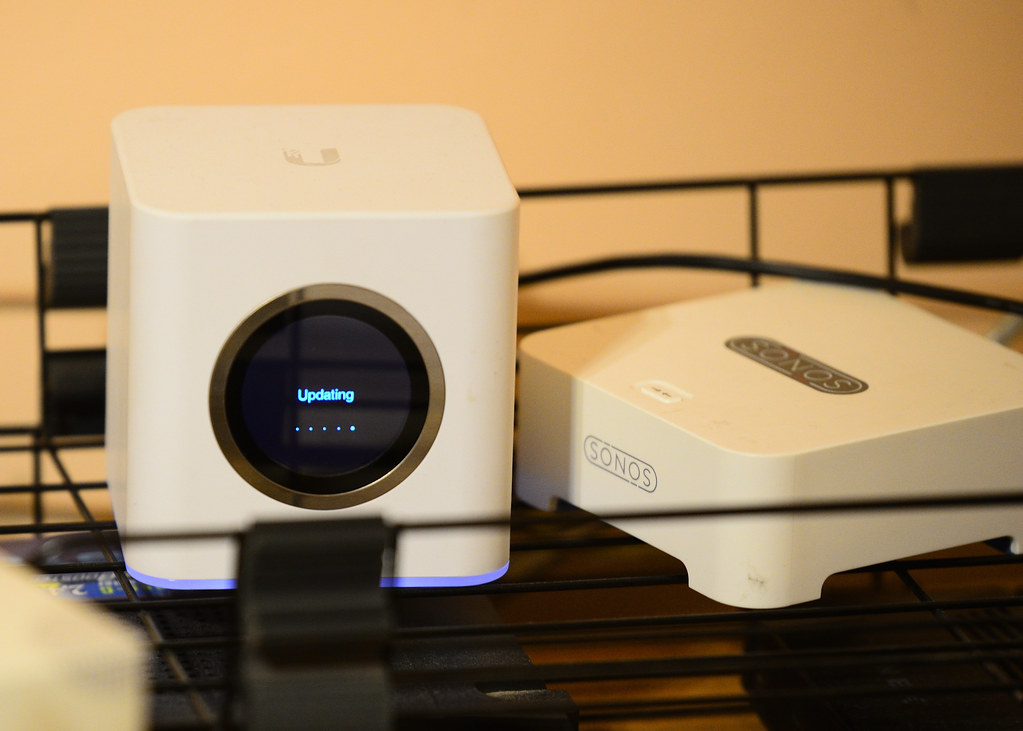
To secure your home Wi-Fi router, change the default admin login, use WPA3 or WPA2-AES encryption with a long passphrase, keep the firmware updated, and switch off features you do not use. The router is the front door to every device in your home, so a few minutes of setup protects phones, laptops, cameras and TVs at once.
Why the router matters so much
Every device in your home sends its traffic through the router. If an attacker takes control of it, they can redirect you to fake websites, watch which services you connect to, or use your connection for their own purposes. Routers are also always on and rarely looked at, which makes them a favorite target.
Most router problems come from three things: factory-default credentials, outdated firmware and risky convenience features. All three are fixable from the admin page.
Step 1 to 4: lock down access
- Change the admin password. The login for the settings page is separate from the Wi-Fi password. Replace the default with a long, unique one stored in a password manager.
- Change the admin username if the router allows it, so an attacker has to guess both values.
- Disable remote administration. Unless you truly need to manage the router from outside your home, turn off any option that exposes the admin page to the internet.
- Use a unique network name. Avoid a name that reveals the router model, your family name or your address. A generic name gives away less.
Step 5 to 8: encryption and Wi-Fi settings
The Wi-Fi password and the encryption type decide how hard it is to join or eavesdrop on your network.
- Choose WPA3 if every device supports it. Otherwise pick WPA2 with AES. Never use WEP or open networks.
- Set a long passphrase. Four or five random words, or around 16 characters or more, is far stronger than a short complex password.
- Turn off WPS. Wi-Fi Protected Setup lets devices join with a PIN or button press, and the PIN method has known weaknesses.
- Disable legacy features such as UPnP if you do not need them. UPnP lets devices open ports automatically, which malware can abuse.
Step 9 to 12: maintenance and separation
- Update the firmware. Updates fix security flaws. Enable automatic updates if offered; otherwise check the admin page every few months.
- Create a guest network. Put visitors and, ideally, smart home gadgets on a separate network so they cannot reach your laptops and files.
- Review connected devices. Look at the device list and remove anything you do not recognize, then change the Wi-Fi password if something unknown keeps appearing.
- Replace old routers. If the manufacturer no longer provides updates, the device cannot be made fully safe. Plan a replacement.
What a guest network actually does
A guest network gives devices internet access but isolates them from the main network. If a cheap smart plug is compromised, it cannot scan your computers. Enable client isolation if the option exists, and give the guest network its own password.
A quick router audit you can do in ten minutes
Log in, then work through this short list:
- Is the admin password unique and not the factory default?
- Does the wireless security say WPA3 or WPA2-AES?
- Is WPS off and remote management off?
- Is the firmware version current, or is automatic update on?
- Does the connected-device list contain only things you recognize?
- Is there a separate guest network for visitors and smart gadgets?
If you cannot answer one of these, that is the setting to look at first. Write down the router’s admin address and where you stored its password so a future you, or a family member, can find it.
Extra hardening for people who want more
Once the basics are done, consider changing the DNS setting to a filtering resolver that blocks known malicious domains, setting the router to log events, and scheduling the Wi-Fi to switch off at night if nothing needs it. If you rent a router from your internet provider, ask whether the admin settings can be changed, since some are locked down. If not, you can place your own router behind it and use that for your home network.
Also consider physical placement. A router near a window broadcasts further outside your home than necessary. Moving it toward the center reduces the range outsiders can pick up.
Frequently asked questions
How often should I change my Wi-Fi password?
There is no need to change it on a schedule if it is long and was never shared widely. Change it when someone you no longer trust has had it, when an unknown device appears, or after a security incident.
Is hiding the network name (SSID) a good idea?
No. A hidden name does not stop a determined attacker, and it can make devices broadcast the name as they search. Strong encryption matters far more.
Do I need a new router for WPA3?
Only if your current one does not offer it. WPA2 with AES and a strong passphrase is still a solid choice, as long as the firmware is kept current.
Key takeaways
- Change both the admin password and the Wi-Fi password to long, unique values.
- Use WPA3 or WPA2-AES, and turn off WPS and remote administration.
- Keep firmware current and retire routers that no longer receive updates.
- Isolate guests and smart gadgets on a separate network.